Edit Card Notes
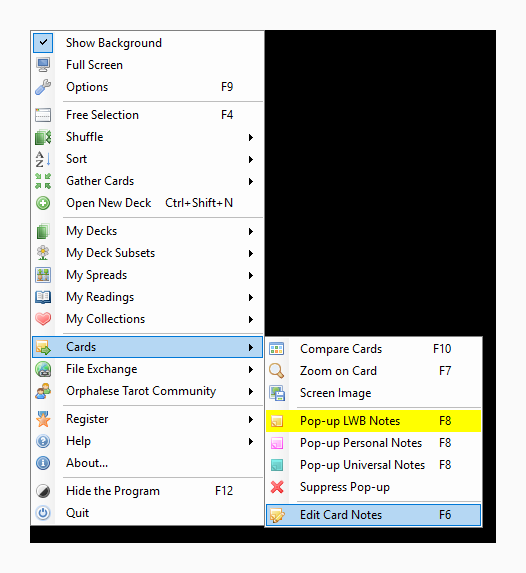
The Edit Card Notes tool is launched by clicking Edit Card Notes on the Cards Menu or using the F6 shortcut key.
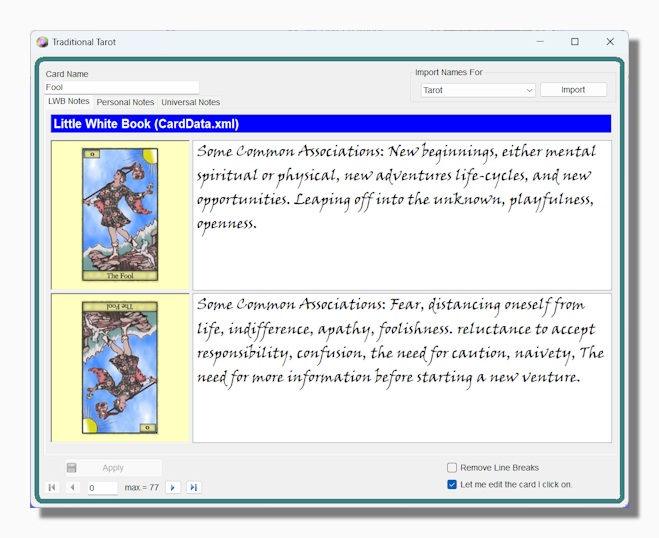
This tool can be used to edit your Universal notes or your Personal or Little White Book notes for the current deck. It lets you move easily between the cards by either using the arrows to click through them in order or by clicking on the card you want to edit.
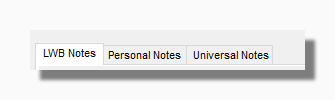
This window is tab based. Pick the tab for the set of notes you want to edit. To read more about the different sets of notes see Pop-up Notes
Edit the top window for the standard notes which are shown when the card is upright, and the lower window if you want a different set of notes to show when the card is reversed. When no notes exist for the reversed card, the upright notes are used in both cases.
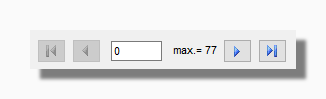
You can move between cards in order by using the back and forward arrows in the navigation panel.
By selecting this option you can go directly to any open card by clicking on it.
Use the apply button to save the changes for the current card and be able to view them straight away in the card's pop-up notes in the program. When you navigate between cards the program saves the changes you just made automatically, so it is not necessary to press the Apply button every time.
Tip: If you only want to edit the notes for a single card, for example if you spot a typo when you are viewing the pop-up notes and you want to fix it quickly, then press Enter/Return when the notes window is open to launch the Card Notes Quick Edit window.
Card Names

Since Version 10 of the program you can set a name for each card in the deck. You can edit the names on this form on a card by card basis. If you want to apply a standard set of names you can use a naming Schema to apply the appropriate name to all the cards in the deck. You can also import the names from any existing deck by selecting "Choose Deck" in the drop-down box and then pressing Import. At that point you will be offered to browse for a deck.
Remove Line Breaks: One time somebody sent me a set of notes in a Word document and for some reason every sentence was in a new line. To make it easier on myself I added this option. When the box is checked, on saving the card notes the program replaces each new line with a space character such as you would get by hitting the keyboard space bar. It is probably not a hugely useful feature but I decided to leave it in case it was ever useful to anyone else one day.